Website powered by

Health Consumable Replication Case Study

Tutorial / 19 February 2026

Hello everyone! Today, we'll be replicating a health kit from the game Solar Ash in Unreal Engine.

Here is my final interpretation:

Specifically, we'll be replicating the behavior and vfx of how the kit responds to a player already at full health. The game signals this item is unusable via a multipart glitch effect. 

Lets start simple with the case breaking open.

Using any event (an overlap volume here for simplicity), use the following nodes to hide the undamaged heath kit housing, and make a damaged version visible. I also recommend enabling a small niagara system to accompany the transition. The "Do Once" node is sometimes necessary for niagara systems misbehaving.

Should look something like this:

Next, we'll handle the material for the consumable. I'm using some masks here to differentiate parts of my mesh. Be sure to set your shading model to unlit. Include a fresnel to add that techy, holographic feel.

Now comes the fun part! That sweet glitch effect. If you reference the video above, the glitch effect moves with the camera. Use a screen-aligned texture for that. Take care with your parameter names, as we'll be using those in the BP soon.

Plugging this into your emissive will result in this:

Next, we'll animate this mask with the blueprint like so:

I recommend playing with the timelines for effect.

Now, connect both segments of your material with a lerp.

This code will control that lerp, changing the value between 0 and 1 as the player approaches.


Be sure to also set your material blend mode to masked, and include this opacity logic:


Its starting to feel more complete!

Vertex manipulation is next. Try some variation of this in your material:

In your Blueprint, use one loop to switch out which texture is being used for displacement, and have another loop randomly set the intensity of the effect.

After a few small adjustments for art direction, you're home free.


3 Tricks for Stylized Environment Creation in Unreal Engine

Tutorial / 01 June 2022

After learning the basic workflows for game art, it's easy to stagnate and stop learning. This is a problem as our industry is constantly evolving, and your current workflow may be obsolete in a year. This article will outline ways to improve your stylized environments with tech tips in unreal.

Starting stylized projects inside of unreal may feel insurmountable at first. I remember my first stylized unreal project, that thing will never see the light of day. However, your experience doesn't need to be the same! Today I'm sharing some useful tips I used while creating this environment WIP:

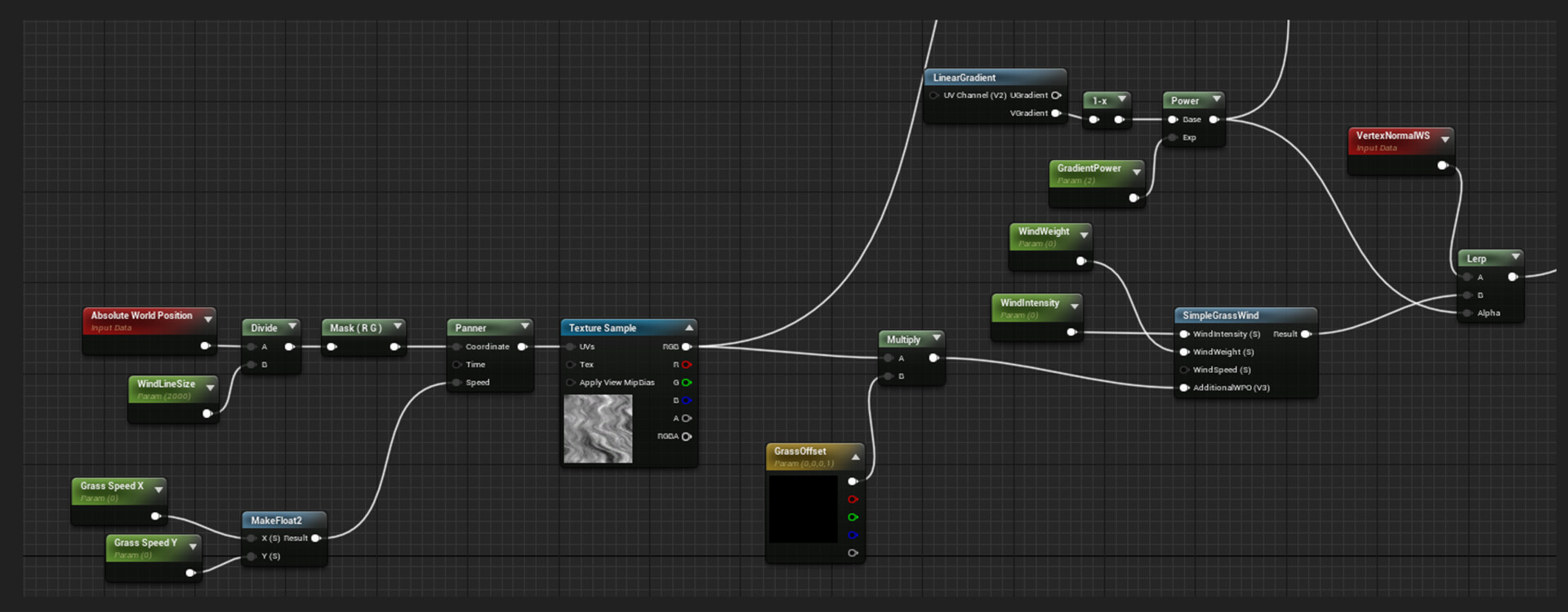
One useful trick for making your environment more dynamic is Z up vertex foliage. While the name is a mouthful, the premise is fairly simple. By setting the vertex normal of your foliage cards to be straight up, it's possible to make them all interact with a world-aligned texture within unreal. Keep in mind that this may look a little strange within your 3D package. Once your card is in unreal, you'll need to utilize a material setup similar to this one. 

A large part of this process is adjusting the material parameters to fit the needs of your scene. Once you're satisfied, it should look something like this:

If you need more clarification on this process, I highly recommend this wind-blown grass tutorial.

Upgrading your foliage is well and good, but what about the rest of the scene? The very composition itself? I found it incredibly useful to utilize strong 2-dimensional art as a base for my scene. The concept for this environment was created by the wonderful illustrator Frederick Simon.

While this is not always the case, generally if something works in 2 dimensions, it is possible to translate it into 3. The start of this process may feel overwhelming, but you have more tools at your disposal than you can imagine. When starting a 3d scene based on a concept, I think of it like this: "If it's a painting, I'll just treat it like a painting".

This means copying the composition of the concept directly, without trying to eyeball relationships between forms. An easy way to do this is to use PureRef, a free program that allows you to superimpose an image on top of anything. Below I'm using it inside Maya from the perspective of a locked camera to block out the elements from the concept art.

Of course, this process will never be perfect, and there will be some things that don't look right in 3D. However, it's our job as the interpreter of the concept to find the next best equivalent.

An easy way to finalize your environment is to use a mask-based workflow for your materials. The majority of stylized materials depend solely on the base color channel. Therefore, instead of constantly tweaking your materials in your texturing package during the final stages, it's easier to export your masks from said packages, and use them in combination with vector parameters.

Using this method, I was able to change the feel of my scene in a matter of minutes.

Thank you for reading, and I hope you find these tips and tricks useful in your own work. I will continue to post updates on the progress on this environment, so be sure to follow for more insights as it continues to develop.